
Clarity settings · v0.7.3 · v0.8 due Sep 2
Bodycam Game Too Grainy? Fix Blur and Improve Visibility
- Reading time
- 6 minutes
- Difficulty
- Reversible settings
- Checked
- 2026-09-01
On this page
Guide details
Before you begin
Diagnose excessive grain and softness without erasing Bodycam's intended action-camera look, using current-version checks in a safe, reversible order.
The official Grain, Sharpness, and Motion Blur controls; resolution and upscaling comparisons; the difference between a setting problem and Bodycam's intended lens effect; and safe rollback steps.
- Status
- Official patch notes cross-checked
- Edition
- v0.7.3 · v0.8 due Sep 2
- Platform
- Windows PC · Steam
- Checked
- 2026-09-01
- Check note
- The menu paths and behavior were checked against official v0.7.x notes through v0.7.3. Bodycam v0.8 is officially scheduled for September 2, 2026, so paths must be rechecked after that update.
Before you set out
Prerequisites#
- Update Bodycam before troubleshooting; v0.7.1 fixed a Grain toggle that did not always turn the effect off.
- Record your current graphics values or take a screenshot before changing them.
- Change one setting at a time and compare the same scene before moving to the next control.
Visual reference
Separate the action-camera look from excess grain#
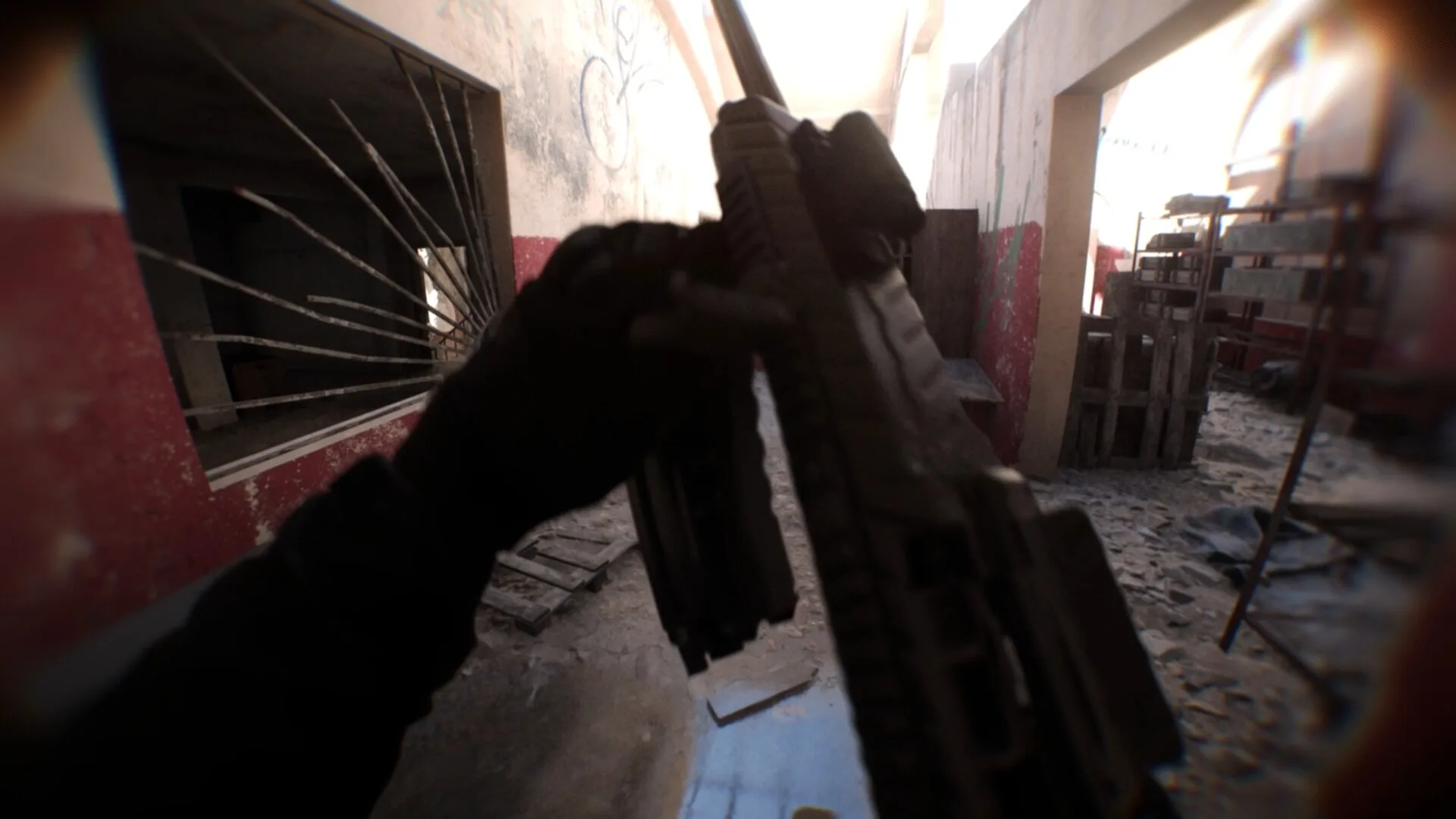
Route 02
Check Bodycam clarity settings in this order#
Use the same scene for every comparison. Stop as soon as the picture is clear enough; the game is not designed to look like a clean, fixed tripod camera.
Update the game and save the current values#
Install the current public build, then record Grain, Sharpness, Motion Blur, resolution, and the active upscaling mode. This gives every later comparison a safe rollback point.
Turn Grain off#
Open Settings → Graphic Settings → Grain and set it to Off. Official notes identify this control as the direct way to remove the grain effect.
Adjust Sharpness gradually#
If the full picture still looks too soft, open Settings → Graphics, scroll to Sharpness, and increase it in small steps. Stop before outlines develop bright halos or noisy edges.
Compare Motion Blur on and off#
Turn Motion Blur off for one movement test. Keep it off if camera turns and fast movement become easier to read; restore it if the change does not address the symptom.
Check resolution and upscaling#
Confirm that the game is using the intended display resolution, then compare the active upscaler or screen-percentage option with one alternative. A low render scale can look like blur even after Grain is off.
Keep only the changes that helped#
Return any setting that made the picture worse to its saved value. Do not stack several unverified changes, because that makes the cause impossible to identify.
Margin corrections
Clarity changes that make diagnosis harder#
Changing every graphics option at once
You lose the clean comparison and cannot tell whether Grain, Sharpness, Motion Blur, resolution, or upscaling caused the improvement.
Pushing Sharpness until edges glow
Over-sharpening can trade softness for halos and noisy outlines. Increase it gradually and judge the same scene after each step.
Starting with an unofficial configuration edit
Use the in-game controls and a reversible baseline first. This guide does not treat Engine or driver-level tweaks as an official default fix.
Fault ledger
Match the symptom to the next check#
- Grain stays visible after the toggle is off
- Update the game first. Official v0.7.1 notes say the Grain effect was fixed so it turns off properly, then recheck Settings → Graphic Settings → Grain.
- Only the edges or fast camera movement look distorted
- Compare Motion Blur off, but keep in mind that part of the edge distortion is an intentional action-camera effect rather than a failed Grain toggle.
- The entire image is soft even while standing still
- Check Sharpness, the selected display resolution, and the active upscaling or screen-percentage mode in that order.
- The image looks worse after several changes
- Restore the values you recorded, then repeat the sequence one setting at a time in the same scene.
Field questions
Bodycam grain and blur questions#
- Can you turn Grain off in Bodycam?
- Yes on the checked v0.7.x path: Settings → Graphic Settings → Grain → Off. Update first if the toggle appears ineffective, because v0.7.1 fixed that behavior.
- Where is Sharpness in Bodycam?
- Official notes direct players to Settings → Graphics and say to scroll down to Sharpness. Adjust it in small steps and stop before edges develop halos.
- Why does Bodycam still look blurry after Grain is off?
- Check Sharpness, Motion Blur, resolution, and upscaling. Some edge blur and lens distortion are also intentional parts of the action-camera presentation.
- Are these paths confirmed for Bodycam v0.8?
- Not yet on September 1, 2026. v0.8 is officially scheduled for September 2, so the control names and locations need a fresh check after release.